

Quick answer: Figma to WordPress does not have to mean rebuilding every section by hand. When your Figma file uses frames, Auto layout and clear layer names, a converter can read that structure and generate native Gutenberg or Elementor blocks. Below you will find the exact workflow, how to prepare the file, what still needs manual work, and how to publish the result as a draft.
Introduction
Every agency knows the handoff problem. A designer finishes a clean layout, the client approves it, and then a developer spends days recreating it in WordPress, one section at a time. The figma to wordpress step is where most of that time disappears, and where spacing, typography and structure slowly drift away from the approved design.
Converters close part of that gap. Tapeto is one of them: it reads a Figma file, builds an intermediate representation of the layout, and generates blocks for the builder you choose. This guide explains how figma to wordpress conversion works in practice, using Tapeto’s documented workflow as the reference, and it is upfront about what does not convert.
How Figma to WordPress Conversion Works
The pipeline in five steps
A figma to wordpress conversion in Tapeto always follows the same sequence:
- Prepare the design in Figma.
- Create a project from a Figma link or a JSON export.
- Choose a builder and run the conversion.
- Review the result tabs and the Fidelity Score.
- Move the result into WordPress, by hand or automatically.
What is the intermediate representation?
Tapeto does not translate Figma directly into one builder’s format. It first builds an intermediate representation (IR): a structured, builder-independent description of layout, text, images and styles. A generator then turns that IR into the final blocks. Because of this, the same Figma project can be converted for several builders without uploading the file again.
Which Builders Work With Figma to WordPress Today?
- Gutenberg: available on every plan, including Free.
- Elementor: available from the Starter plan onward.
- Divi, Bricks, Breakdance, Oxygen, Beaver Builder and WPBakery: shown as Coming soon while they are validated on real sites.
So if you search for figma to elementor or figma to gutenberg workflows, those are the two paths that work today.
Step 1: Prepare Your File for Figma to WordPress
The converter reads your layer structure, so a tidy file produces a better result. This is the most valuable part of any figma to wordpress workflow, because it costs nothing and raises the score.
Use frames at desktop width
Build each page as a single Frame at desktop width. Tapeto converts the first page of the file, or only the frame your link points to.
Turn on Auto layout
Horizontal and vertical Auto layout becomes rows and columns with real gaps and padding. Without it, the converter has to guess how elements relate to each other.
Name layers by function
Names help Tapeto decide whether something is a section, a menu or a button.
Names that help
Header,Hero,Nav,FooterCard,ButtonH1,H2
Names that hurt
Frame 1284,Group 52,Rectangle 9- Unnamed wrappers repeated dozens of times
Use real text and web-safe fonts
Write copy as real text layers, not outlines, and pick fonts available in Google Fonts.
Remove what you do not need
Hidden layers are skipped, so delete or hide anything that should not reach WordPress.
Step 2: Start the Figma to WordPress Project
There are two ways to bring the file in, and both work on every plan.
Method A: Figma to WordPress With a Link and Access Token
- In Figma, right-click the frame and choose Copy/Paste as → Copy link to selection.
- Create a token in Settings → Security → Personal access tokens. Read access to the file content is enough.
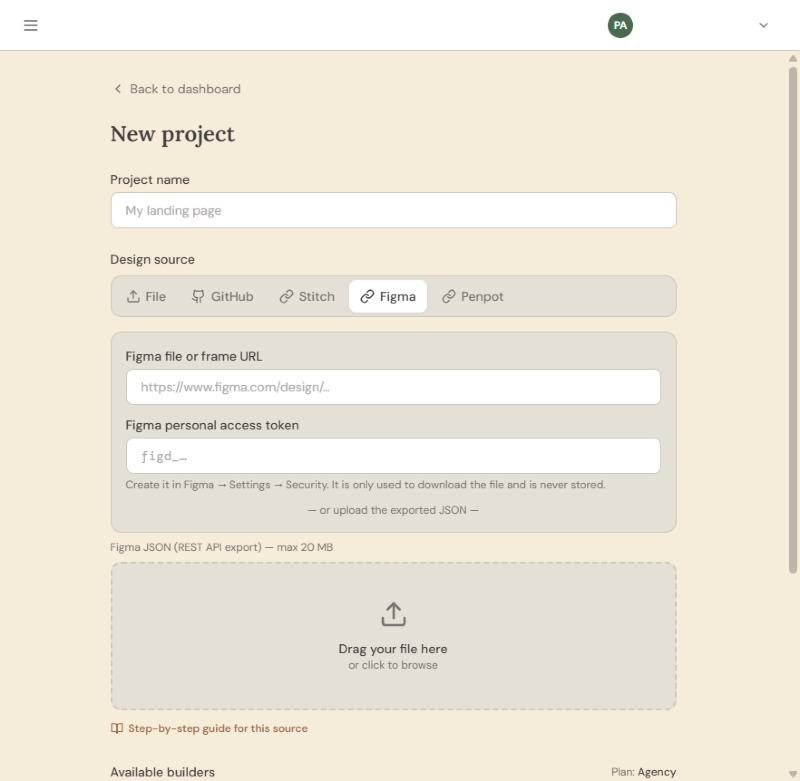
- In Tapeto, click New project, open the Figma tab, paste the link and the token, and click Create project.
The token is used once to download the file and is never stored. The link must start with https://www.figma.com/design/.
Method B: Figma to WordPress Through an Exported JSON
Export the file through the Figma REST API (GET /v1/files/:file_key), save it as a .json of up to 20 MB, and drop it into the Figma tab. This is useful when you cannot share a token.
One Page or One Frame per Figma to WordPress Project
For a multi-page site, create one project per frame. Each project counts toward your monthly limit, which is one project per month on the Free plan.
Step 3: Choose a Builder and Run the Figma to WordPress Conversion
Open the finished project, choose Gutenberg or Elementor, and click Convert. The conversion moves from queued to processing to completed.
How to read the Fidelity Score
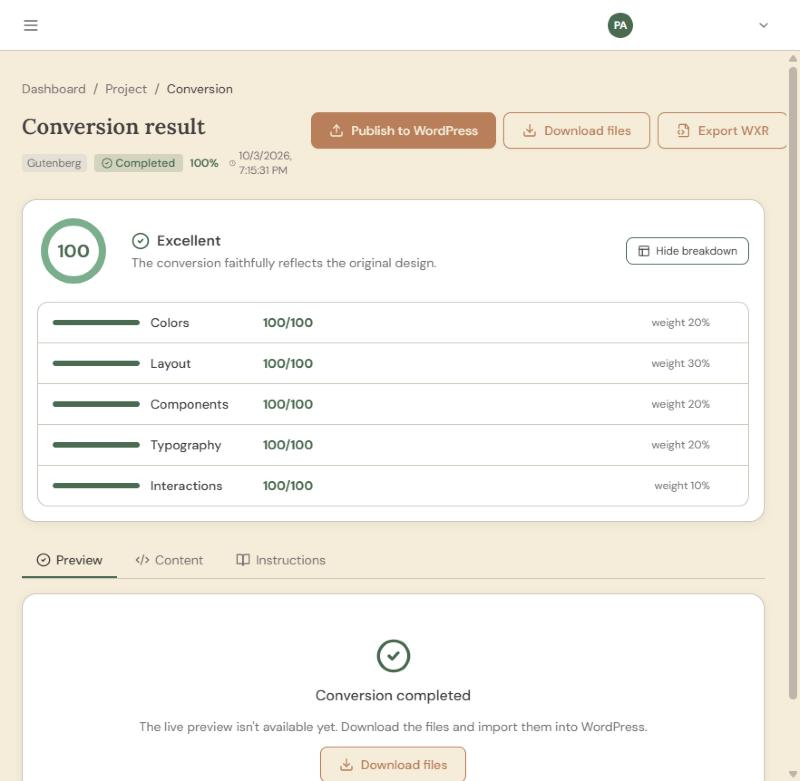
In a figma to wordpress workflow, the Fidelity Score is a 0 to 100 estimate of how closely the generated blocks match your design in spacing, typography, image placement and structure. Clicking Show breakdown splits the score into five weighted parts: layout (30%), colors (20%), components (20%), typography (20%) and interactions (10%). In a figma to wordpress project, that tells you where to look first when the number is below 100. A score above roughly 85 usually needs little or no manual adjustment. It is a signal about how much review to expect, not a pixel-perfect guarantee.
Step 4: Finish Figma to WordPress by Moving the Result In
On the Free plan: copy and paste
- Open the Content tab and use Download files or Copy.
- In WordPress, add a new page, open the three-dot menu and choose Code Editor, then paste.
- Paste header and footer parts into the matching template parts.
- Add the design’s CSS under Appearance → Customize → Additional CSS.
On paid plans: WXR export or direct publish
- WXR export: a standard WordPress file with pages, menus and header or footer, imported from Tools → Import. No plugin is required.
- Publish to WordPress: install the Tapeto plugin, add the site in WP connections and publish. Pages are created as drafts, images go to the Media Library and links between pages are rewritten.
Review every draft before publishing: a figma to wordpress publish never goes live on its own.
What Does Not Convert Yet
An honest figma to wordpress guide has to list the gaps:
- Forms look the same but do not submit. Connect a forms plugin and swap the block.
- Mobile menu and JavaScript animations from the original are not carried over.
- Publishing again creates new pages instead of overwriting, so delete old drafts first.
- Images that turn out missing can be replaced from the Media Library.
Best Practices to Raise Your Figma to WordPress Score
- For a clean figma to wordpress result, keep one frame per page at desktop width.
- Use Auto layout everywhere you can.
- Name layers by function before converting.
- Use real text and Google Fonts.
- Keep media inside the file and clean up hidden layers.
How We Tested This Figma to WordPress Workflow
Every step in this guide comes from using the product, not from reading about it. We build the Figma importer inside Tapeto, so we converted real frames, clicked through each screen and captured the screenshots you see here from a live session of the app. Where a step has a limit, such as one frame per project or forms that look right but do not submit, we say so instead of smoothing it over.
The details that decide a figma to wordpress result are the ones we work with daily: how a frame is read, why Auto layout becomes real rows and columns, how layer names guide the converter and how the intermediate representation is written out as Gutenberg, Elementor or another builder’s format. That is why the advice on naming layers and preparing the file is specific instead of generic.
You do not have to take our word for the technical claims. How the data is read is described in the Figma REST API documentation, the block structure follows the WordPress Block Editor Handbook, and every product behavior is written down in Tapeto’s own documentation.
One more thing you should know: Tapeto is our product, so this guide naturally favors it. That is why the Fidelity Score is described as an estimate and not a promise, why we explain that access tokens are used once and never stored, and why pages arrive as drafts. You review everything before it goes live.
Frequently Asked Questions About Figma to WordPress
1. Can I go from Figma to WordPress without coding?
Yes. A figma to wordpress conversion needs no code: you paste a link and a token, choose a builder and either copy the result or publish it. No code is required for the conversion itself.
2. Is figma to wordpress conversion free?
The Free plan includes one project per month with Figma as a source and Gutenberg as output. Copying files into WordPress is done by hand on that plan.
3. Does Figma to WordPress work with Elementor?
Yes, from the Starter plan. The Elementor output needs Elementor active on the destination site, and the free version is enough.
4. What is the best way to prepare a file for figma to wordpress?
Use desktop-width frames, Auto layout, function-based layer names, real text and Google Fonts. Those five habits matter most.
5. Do I need a Figma token for figma to wordpress?
Only for the link method. If you prefer not to share a token, export the JSON and upload it instead.
6. Can Figma to WordPress handle a multi-page website?
One project converts one page or one frame. Create a project per frame, remembering that each counts toward the monthly limit.
7. Will the result be pixel-perfect?
Not guaranteed. A figma to wordpress result is judged by its Fidelity Score, which estimates how close it is, and higher scores need less manual work.
8. Do I need the plugin for figma to wordpress?
Only for direct publishing. You can always download the files or export a WXR and import them without installing anything.
9. What happens to images and fonts in Figma to WordPress?
Images are uploaded to the Media Library when you publish, and Google Fonts used in the design are loaded. Imported files can also be adjusted by hand afterward.
10. Why use figma to wordpress conversion instead of rebuilding by hand?
Because rebuilding repeats work already done in the design. A converter handles structure and styles, and you spend your time on review and details.
Conclusion
Figma to WordPress works best when the design file is prepared for it. Frames, Auto layout and clear names give the converter what it needs, the Fidelity Score tells you how much to review, and drafts keep you in control before anything is published.
If you are ready to test the workflow, create a free account and run your first figma to wordpress conversion with a single frame.