
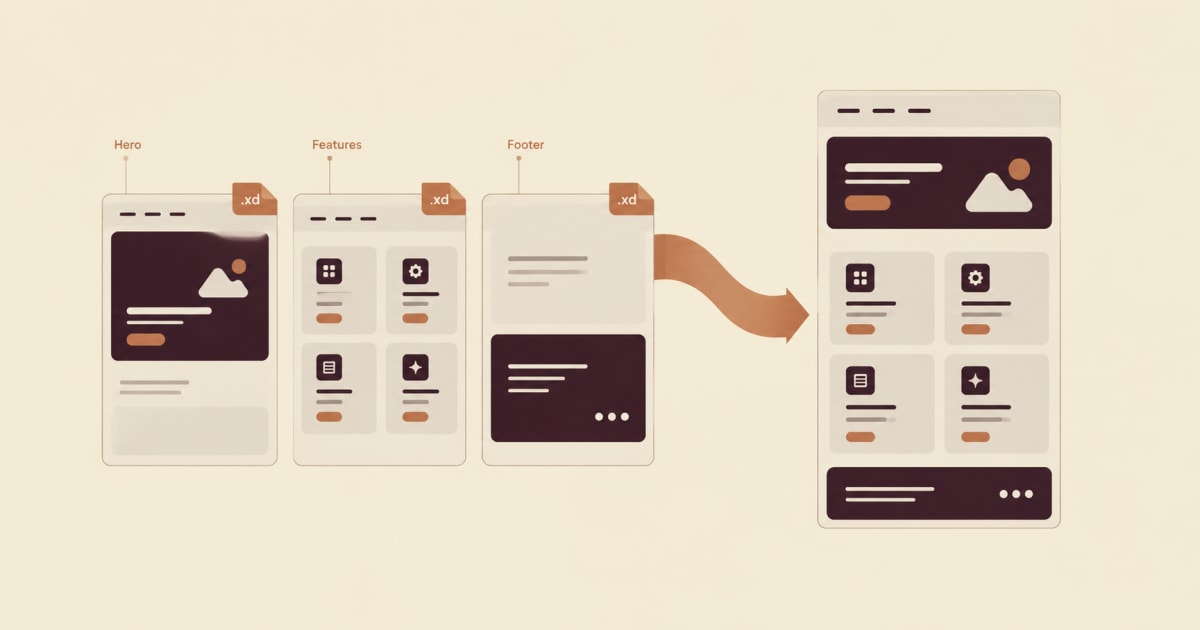
Quick answer: Adobe XD to WordPress conversion is possible without exporting anything by hand. You upload the
.xdfile itself, the converter reads every artboard, and it generates native Gutenberg or Elementor blocks that you can copy, import or publish as a draft. This feature requires the Pro plan or higher, and this guide shows each step and the limits to expect.
Introduction
Many teams still have years of work stored in Adobe XD. Layouts were approved, components were polished, and now the client wants the site in WordPress. Adobe has moved XD into maintenance mode, so more designers are asking how to bring those files forward without redrawing them. That is where adobe xd to wordpress workflows come in.
The usual route is slow: screenshots, redlines, and a developer rebuilding each section. A converter shortens it, and adobe xd to wordpress is a good example. This article explains how adobe xd to wordpress conversion works in Tapeto, how to prepare your artboards, what the output looks like, and what you will still finish by hand.
How Adobe XD to WordPress Conversion Works
You upload the .xd file directly
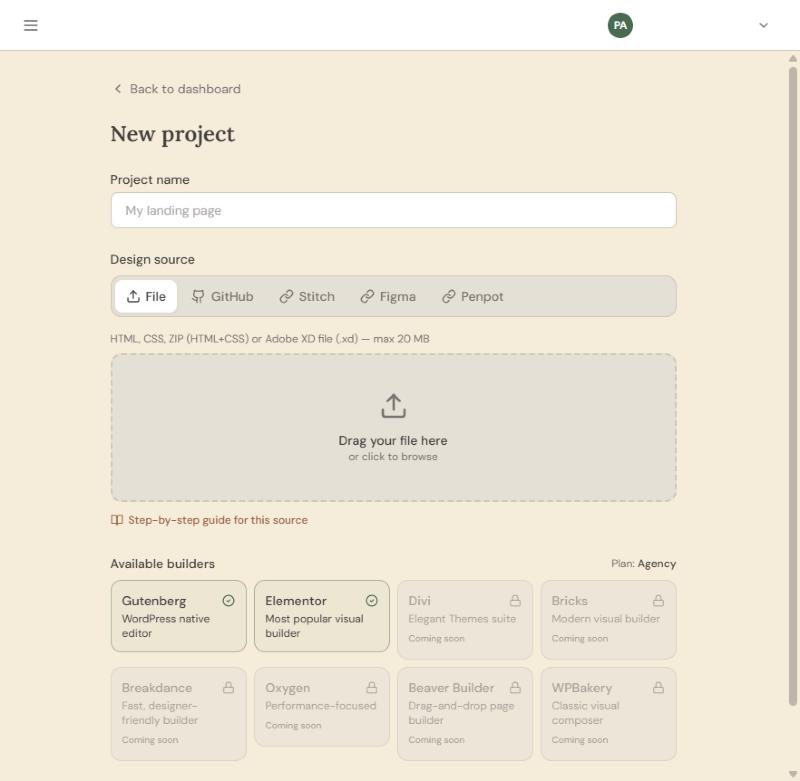
Unlike other sources, Adobe XD needs no export step. You drop the .xd package, up to 20 MB, into the project. Tapeto recognizes it by its extension and reads the file as a package.
Artboards become sections
Every artboard in the file is read and turned into a consecutive section of one converted page. So an adobe xd to wordpress project produces a single page made of your artboards stacked in order. For a multi-page site, use one file per page or choose another source.
From design to intermediate representation to blocks
Tapeto first builds a builder-independent intermediate representation (IR) of layout, text, images and styles. A generator then turns that IR into blocks. This is why one adobe xd to wordpress project can be converted for Gutenberg and for Elementor without a second upload.
Plan Requirements for Adobe XD to WordPress
Importing .xd files is available on Pro, Agency and Studio. On Free and Starter, the file is rejected with the message Your plan does not include this source. In that case you can use ZIP or HTML, or Figma, or upgrade from Settings → Plan and billing.
Step 1: Prepare Your Artboards for Adobe XD to WordPress
A tidy file converts better, so spend a few minutes before uploading.
Use desktop-width artboards in order
Place the page in artboards at desktop width, ordered from top to bottom in the sequence you want them to appear.
Name artboards and layers by function
Names such as Header, Hero, Footer, Card and Button help the converter decide what each element is.
Names that help
Header,Hero,FooterCard,Button
Names that hurt
Artboard 17 copy 3Rectangle 204
Use real text objects and Google Fonts
Type copy as real text objects and choose fonts available in Google Fonts, so the result renders correctly on the web.
Keep images and SVG inside the file
Images and SVG travel inside the .xd package and are detected as assets. Keeping them embedded avoids missing files later.
Delete artboards you do not want
Remove artboards that should not become part of the page. Every remaining artboard is converted.
Step 2: Create the Adobe XD to WordPress Project
- Click New project and type a name.
- Stay on the File tab, the same one used for ZIP and HTML.
- Drop the
.xdfile into the upload area. - Click Create project and wait for processed.
If the file cannot be opened as an XD package, the project ends in error with the reason.
Step 3: Convert Adobe XD to WordPress Blocks
Open the project, choose Gutenberg or Elementor, and click Convert. Each adobe xd to wordpress conversion targets one builder, so run another conversion if you need both.
Reading the Fidelity Score
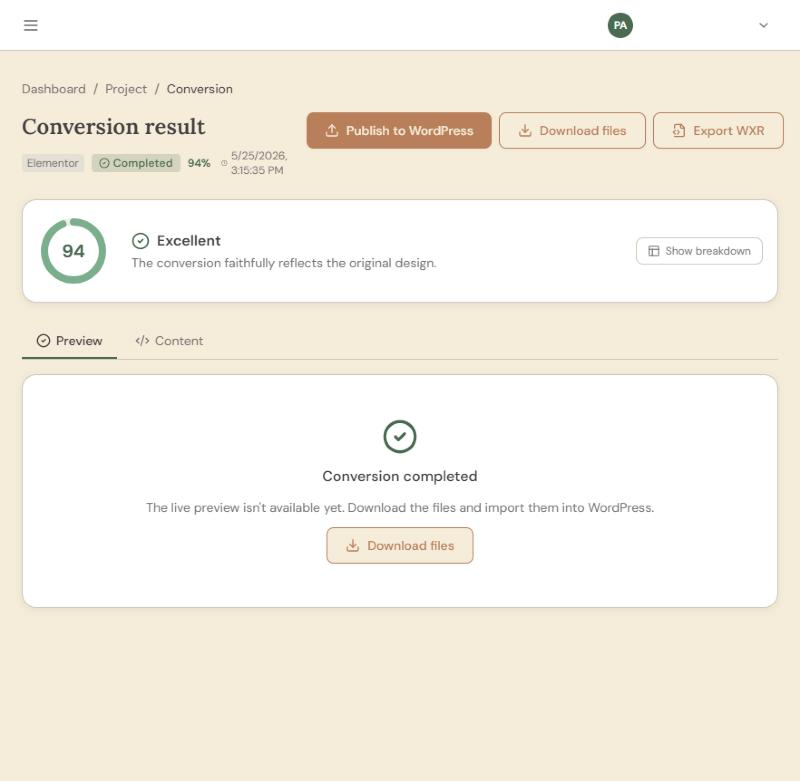
In an adobe xd to wordpress conversion, the Fidelity Score is a 0 to 100 estimate of how closely the output matches your design in spacing, typography, image placement and structure. Around 85 and above usually means little manual adjustment. It is guidance, not a guarantee of pixel-perfect results.
Check images
Open the Content tab, download the files and check the images. Replace any missing one from the Media Library after importing.
Step 4: Bring the Adobe XD to WordPress Result Into Your Site
Because this source is a Pro feature, every output route is available.
Copy and Paste Your Adobe XD to WordPress Result
Use Download files or Copy in the Content tab and paste into the WordPress Code Editor. The Instructions tab shows exact steps for your builder.
Export a WXR file
Click Export WXR and import it from Tools → Import → WordPress. No plugin is required, and menus, header and footer come with it.
Publish directly to WordPress
Install the Tapeto plugin, add the site under WP connections and publish. This route creates the page as a draft. Pro supports three connected sites, Agency ten and Studio unlimited. On Agency and Studio, a WXR can also carry custom post types and loops.
Checklist for the destination site
- HTTPS enabled and Post name permalinks.
- A block theme for Gutenberg output.
- Elementor active when converting for Elementor.
What Does Not Convert in Adobe XD to WordPress
- Forms and interactive behavior from XD prototypes are not working elements in WordPress; connect a forms plugin for real forms.
- Multiple pages in one file are not split: all artboards become sections of one page.
- Publishing again creates new pages, so delete old drafts first.
- Missing images may need replacing after import.
Penpot as an Open-Source Alternative to Adobe XD
If you are planning to move away from XD, Penpot is a common destination. Tapeto also converts Penpot on the Pro plan, from the JSON export of the file. It converts the first page of the file and works best when sections are boards with flex layout. A penpot to wordpress workflow follows the same four steps as adobe xd to wordpress.
Handling Adobe XD to WordPress Conversions in Practice
We build the importers behind Tapeto, including the one that reads .xd files, and this guide describes what that importer does when you use it. The screenshots were taken from the app, and the limits are listed instead of hidden.
In an adobe xd to wordpress conversion, a few things change the result more than anything else: the order of the artboards, the names of the layers and the assets embedded in the file. Those are the points this guide spends its time on, because they are the ones you can fix in XD before converting.
When you want to check a claim, go to the source. The block format is described in the WordPress Block Editor Handbook, the file format and its tools in Adobe’s XD documentation, and the product’s behavior in Tapeto’s documentation.
Tapeto is our product, and that is part of the context for everything above. The Fidelity Score is an estimate, pushes to WordPress are signed, and pages are created as drafts so nothing goes live without your review.
Frequently Asked Questions About Adobe XD to WordPress
1. Can I do Adobe XD to WordPress without exporting?
Yes. You upload the .xd file directly and Tapeto reads it, so there is no export step.
2. Which plan do I need for Adobe XD to WordPress?
Pro, Agency or Studio. Free and Starter accounts see the source rejected with a message that the plan does not include it.
3. Does Adobe XD to WordPress work with Elementor?
Yes, you can choose Gutenberg or Elementor. Elementor must be active on the destination site, and the free version is enough.
4. What happens to artboards in Adobe XD to WordPress?
Every artboard is converted and placed as a consecutive section of a single page, in the order you arranged them.
5. Can Adobe XD to WordPress handle a multi-page website?
Not in one project. Use one file per page, or choose another source such as ZIP or HTML.
6. How large can the .xd file be for Adobe XD to WordPress?
Up to 20 MB.
7. Are images and SVG kept in Adobe XD to WordPress?
Images and SVG inside the package are detected as assets. Check the downloaded files and replace anything missing from the Media Library after import.
8. Do I need a plugin for Adobe XD to WordPress?
Only for direct publishing. You can download files or export a WXR and import it without a plugin.
9. Is Adobe XD to WordPress output pixel-perfect?
No promise is made. The Fidelity Score estimates how close it is and tells you how much review to expect.
10. Is Adobe XD to WordPress conversion worth it compared to a rebuild?
For most layouts, yes. The converter handles structure and styles while you focus on review, forms and details.
Conclusion
Adobe XD to WordPress conversion gives old designs a path forward. Prepare ordered artboards, name layers clearly, keep assets inside the file and let the converter do the repetitive work. Review the Fidelity Score, then copy, import or publish as a draft.
If you have an XD file waiting, run your first adobe xd to wordpress conversion on a Pro account and check the score yourself.